About blindfold-chess.app
It all started with one idea: "you only need 3 corner taps to select any of the 64 squares on a chessboard". That's the core idea behind blindfold-chess.app, which we started building in May 2025. We're thrilled to own this unique system and our goal is to create the best blindfold chess app in the world.
This page contains:
- a User Guide 🎮 Help!with information about how to use the app and to answer frequently asked questions.
- a License Agreement 📚 with a more formal description of permitted and restricted uses.
- a Privacy Policy 🛡️ that describes our commitment to collecting as little data as possible.
In short, this page contains everything you need to know before hitting "PLAY NOW":


Both blindfoldchess.app and blindfold-chess.app work.
🎮 User Guide
How to Play
This app is designed to be used eyes-closed and without using your voice. Simply put in earbuds, hold your device horizontally in your hands like a game controller, close your eyes, and control the pieces by just touching the screen-quadrants with your thumbs. The app offers a completely immersive, audio-guided blindfold chess environment.
Starting a New Game
Let's first find out how to play against bots. After that, playing against humans is easily explained.
- Play Bots: The app starts on the Home screen. Click "Play Bots".
- Input Mode: The first selector has a huge influence on how you experience the game. The app supports dragging or clicking pieces (visible and invisible) with your computer mouse on a visible chessboard, but for real eyes-closed play you need one of the options "Tap Screen Corners", "Use Keyboard" or "Use Game Controller". Those 3 options all use the unique quadrant-based input system. When using mouse input (drag or clicks) in single-board games, you can make pre-moves while your opponent is thinking (highlighted in orange; cancel anytime via right-click or clicking an empty square). For touchscreen devices you can use "Tap Screen Corners". Make sure you understand how "Tap Screen Corners" works before trying out the keyboard or game controller options.
- Help (👁): Even if you choose the "Tap Screen Corners" input mode, which is meant for eyes-closed play, you can still configure the app to show a chessboard. This helps getting familiar with the input system and allows "peeking" from time to time. If you choose "👁 Empty Board", it makes reasoning about the diagonals easier. If you choose "👁 Uncolored Circles", you see a board with circles for the pieces. You can even choose "👁 Colored Pieces" to show a normal chessboard with black and white pieces. The default is "👁 Text and Areas", which does not show a board, but gives subtle hints about the effect of each corner tap. The most advanced mode is "🛇 No visuals" where you only hear audio and cannot see any visual hints.
- Move Audio Verbosity: Choose "Full move audio" (default) or "Short move audio". Short move audio speeds up play by announcing moves concisely (e.g. "Knight f3", "e4", "castles g", "e takes d5") without verbose phrasing like "from ... to ...".
- Boards: Choose 1 board or a simul (from 2 to 64 boards). For bot simuls, choose In board order (sequential) or Random board order. (In Play Humans simuls, the app automatically navigates you to the boards with the least time remaining.)
- Time Control: Choose "Unlimited" (default) or a time control (Blitz, Rapid, or Classical up to 90+30). In bot simuls, you share a single clock across all boards, with increment added once per completed round.
- Your Color: In case of playing one board: select "White" or "Black" from the color dropdown. If you play multiple boards, there's an additional option where the color will alternate (white, black, ...) for each successive board.
- Position: Choose "Standard" for regular chess or "960" for a random back rank starting position. Choose "Custom" if you want to set up a position (without castling rights), for example for practising an endgame. Use FEN (Forsyth-Edwards Notation), but only the piece placement part.
- Bot(s): The easiest bot to defeat is "Benny 🍃 100". He often lets his pawns, knights and bishops be taken, sometimes even a rook, without any fight. The bots are tagged with play style icons: 🍃 beginner, 🔥 aggressive, 🛠️ tactical, 🌐 positional, 🛡️ defensive. For higher-rated bots, aggressive (🔥) bots offer the most variety, while defensive (🛡️) bots play least varied. (Max variance from top evaluation at the bot's fixed depth per playing style: 🔥40cp, 🛠️30cp, 🌐20cp, 🛡️10cp.)
Another icon that is used is ⏱️, which indicates that this is the fastest responding bot of its rating. More than 9000 bot-vs-bot matches were played so that the elo of our 75 bots could be calculated. (Only Benny's elo was adjusted to 100 after the fully automated elo calculation.)
In case you have selected 2 boards or more, you can play against multiple bots. Let's say you play 10 boards. If you then select 3 bots, the first bot plays on boards 1, 4, 7, and 10. The second bot plays on boards 2, 5, and 8, and the third bot on boards 3, 6, and 9. (Bot 1, Bot 2, Bot 3, Bot 1, Bot 2, Bot 3, ...)
Prefer playing humans after a few games? Tap "Play Humans" (👥) on the Home screen to play live rated or casual games against players worldwide! - Intermediary Voice: The intermediary will tell you the moves that your opponent makes. If you choose voice A for the opponent's intermediary, your moves will be spoken by voice B, and vice versa.
- Always Promote to Queen: By default, this option is enabled, meaning your pawns will automatically promote to a Queen. Uncheck this option if you want to manually choose your promotion piece (Queen, Rook, Bishop, or Knight) during the game.
- Confirm Moves: By default, this option is disabled. You'll need to swipe from the center square to the right to confirm the move. This feature ensures that you don't make a move because of an accidental 3rd tap while selecting the destination square. If you don't realize you did a 3rd tap, when you do a 4th tap you will be notified and the selection will be canceled.
- Use Keyboard / Game Controller: Select "Use Keyboard" or "Use Game Controller" in the input mode dropdown if you're not using a touchscreen. A dialog opens to register keys of your physical keyboard or buttons of a game controller to simulate the touchscreen corner taps (and swipe gestures). On a physical keyboard, you may like to use your index fingers for the top keys and thumbs for the bottom keys with a layout like this:
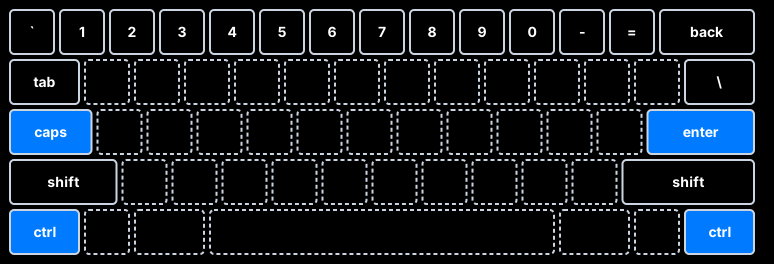
- Start: Tap the "Start" button to start playing. In 960 games, the app announces the starting back-rank piece configuration using a compact 5-letter code: the two bishops alphabetically, the two knights alphabetically, and the queen – think ♝♝♞♞♛ separated by pauses – e.g. "b e – c g – a". The remaining 3 empty squares on the back rank are always Rook, King, Rook with the King always between the two Rooks. (Before making your first move, you can repeat this announcement by swiping down from the center square.)
When the game starts, the app will request to keep the screen awake (so that it doesn't lock or become inactive). When you close your eyes and start playing, this will ensure that the screen remains on and responsive to your touches.
Making a Move (Square Selection)
The game screen consists of four large, touchable quadrants:
- TL (Top Left)
- TR (Top Right)
- BL (Bottom Left)
- BR (Bottom Right)
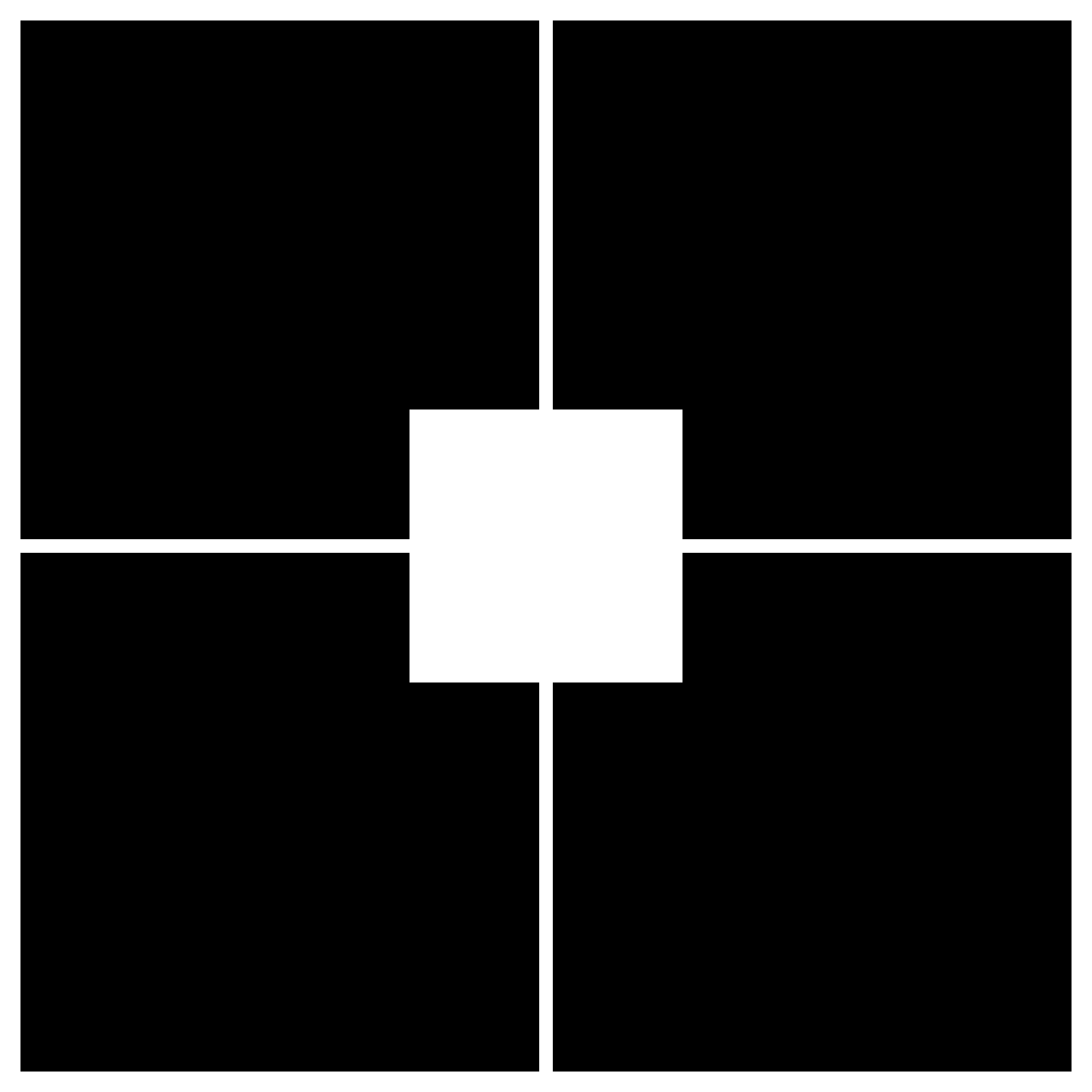
When you use the app in full-screen mode, you can use your thumbs to tap these quadrants. To select any square of the 8x8 chessboard, you will make three consecutive taps on these quadrants. Each tap narrows down the selection to a smaller quadrant, eventually pinpointing a single square. Visual help is provided during play to get acquainted with this system.
Example 1: tapping BR BL TL selects E2 (for White)
- 1st tap, bottom-right: selects the bottom-right 4x4 quadrant (e1-h4).
- 2nd tap, bottom-left: selects the bottom-left 2x2 quadrant (e1-f2) within the previous 4x4 (e1-h4).
- 3rd tap, top-left: selects the top-left 1x1 square (e2) within the previous 2x2 (e1-f2).
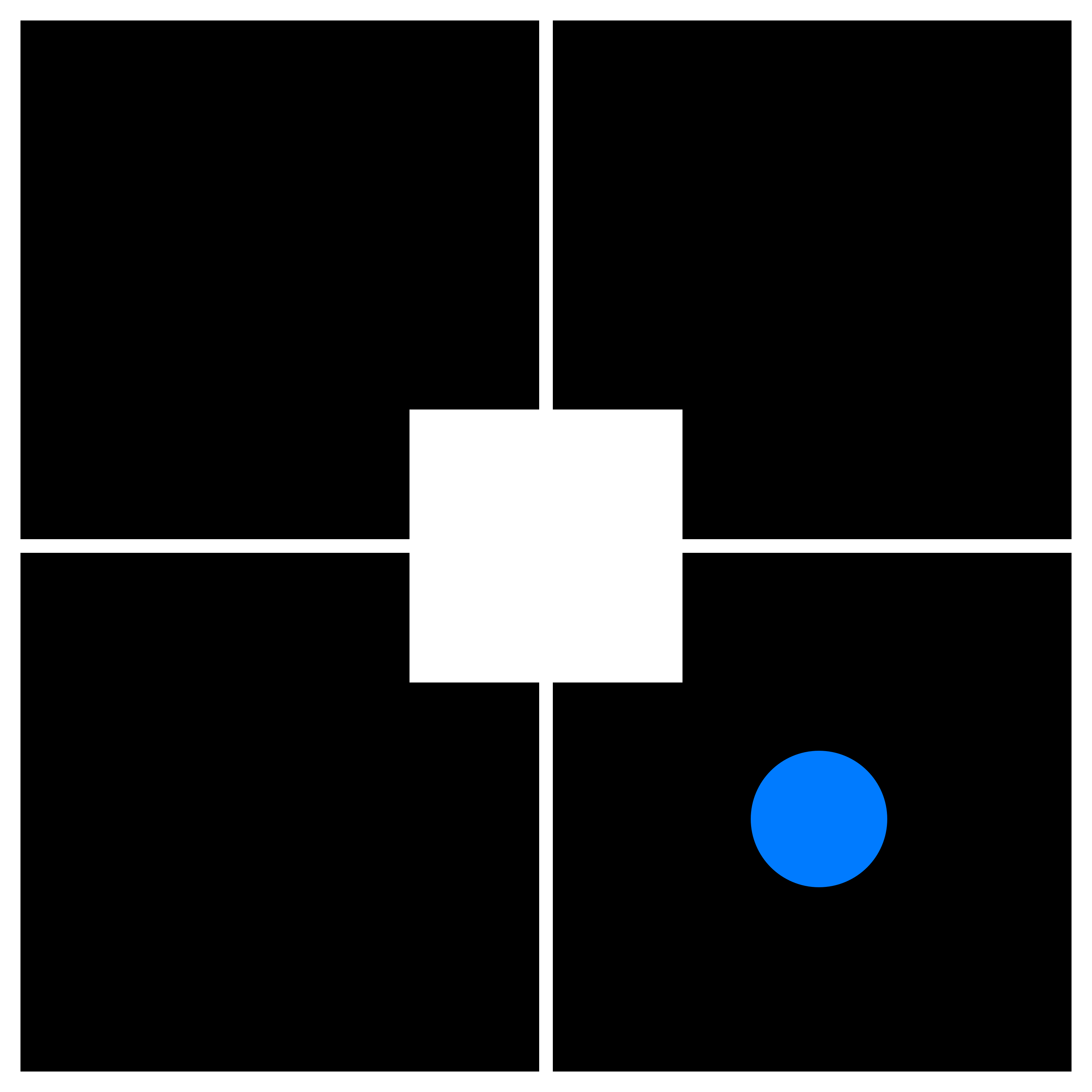

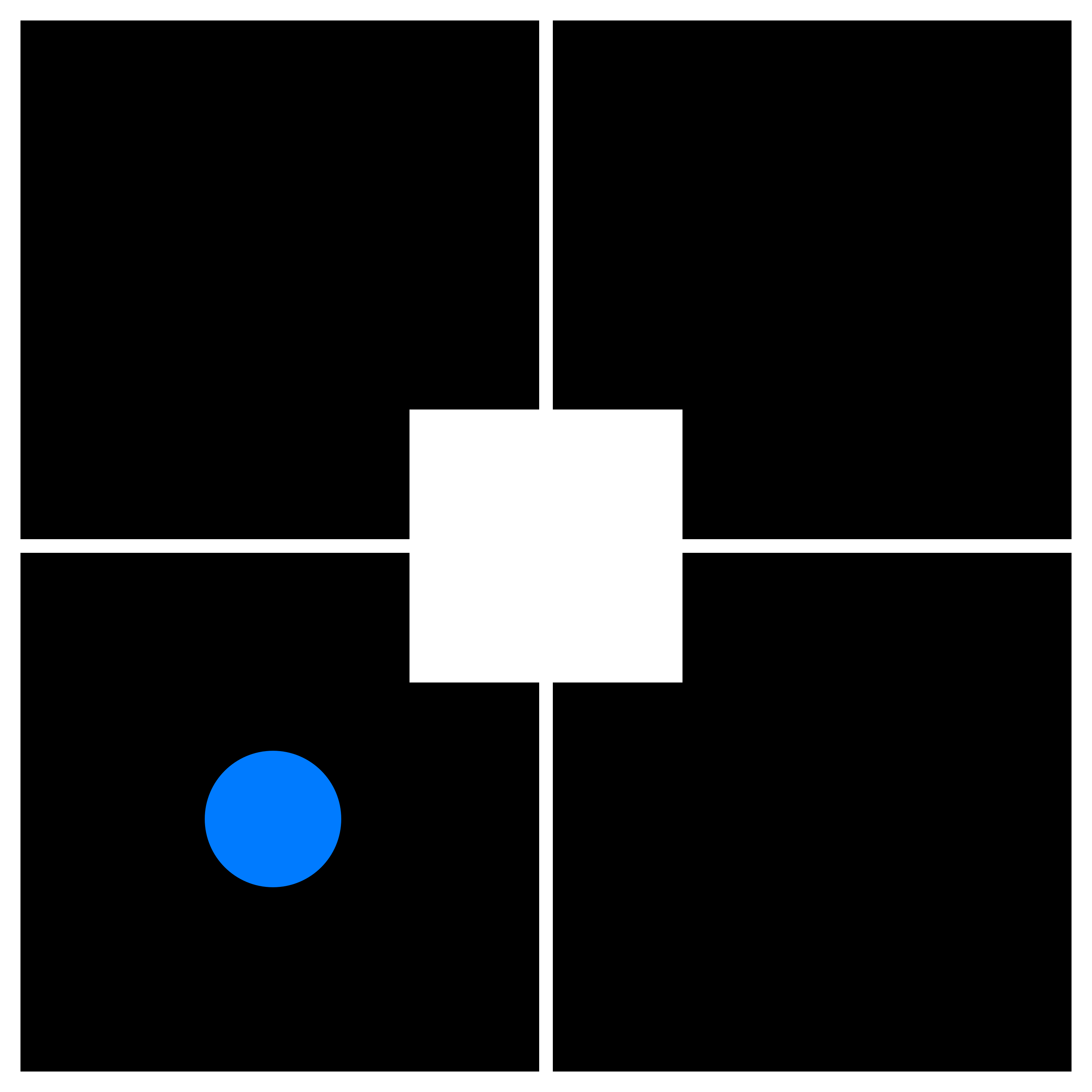
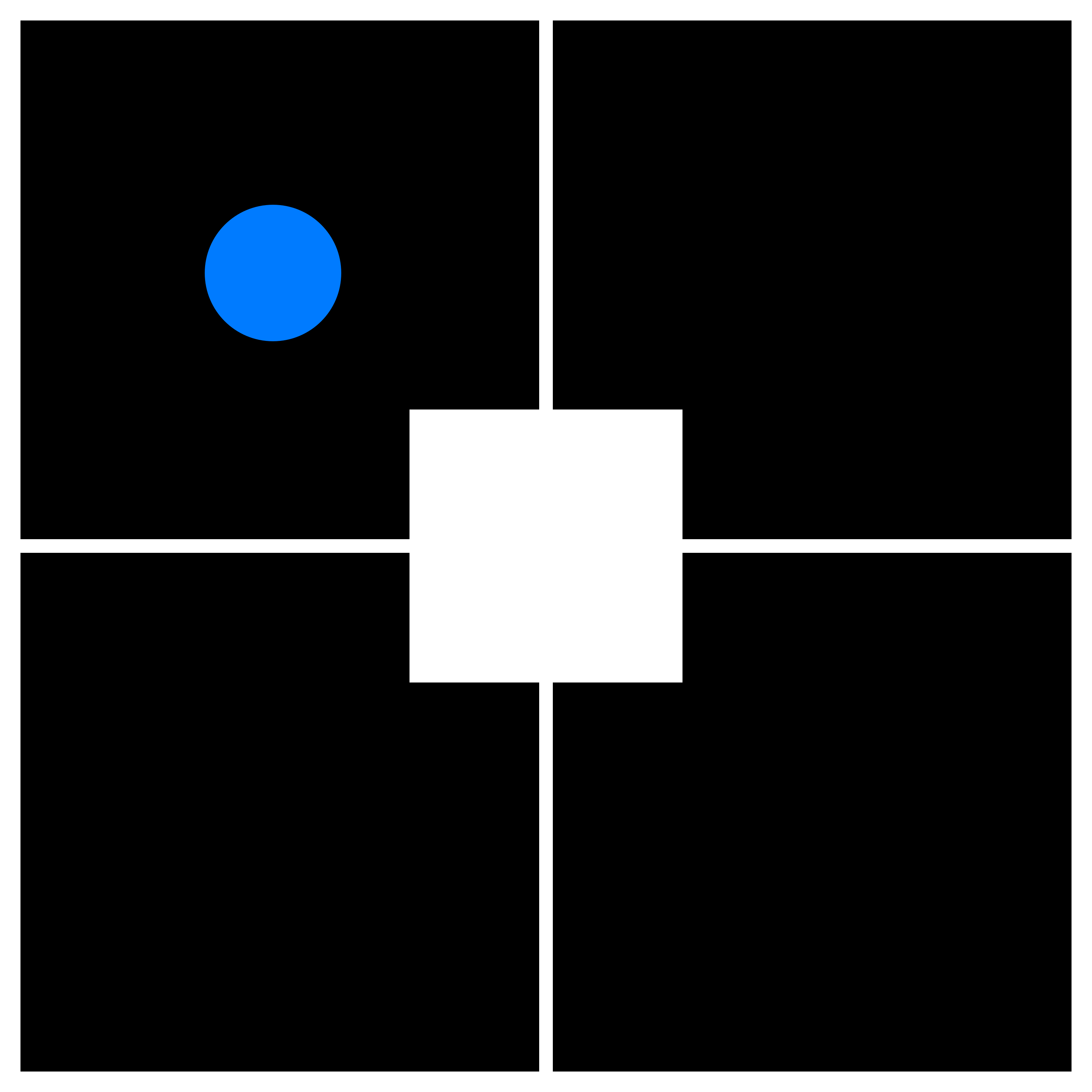
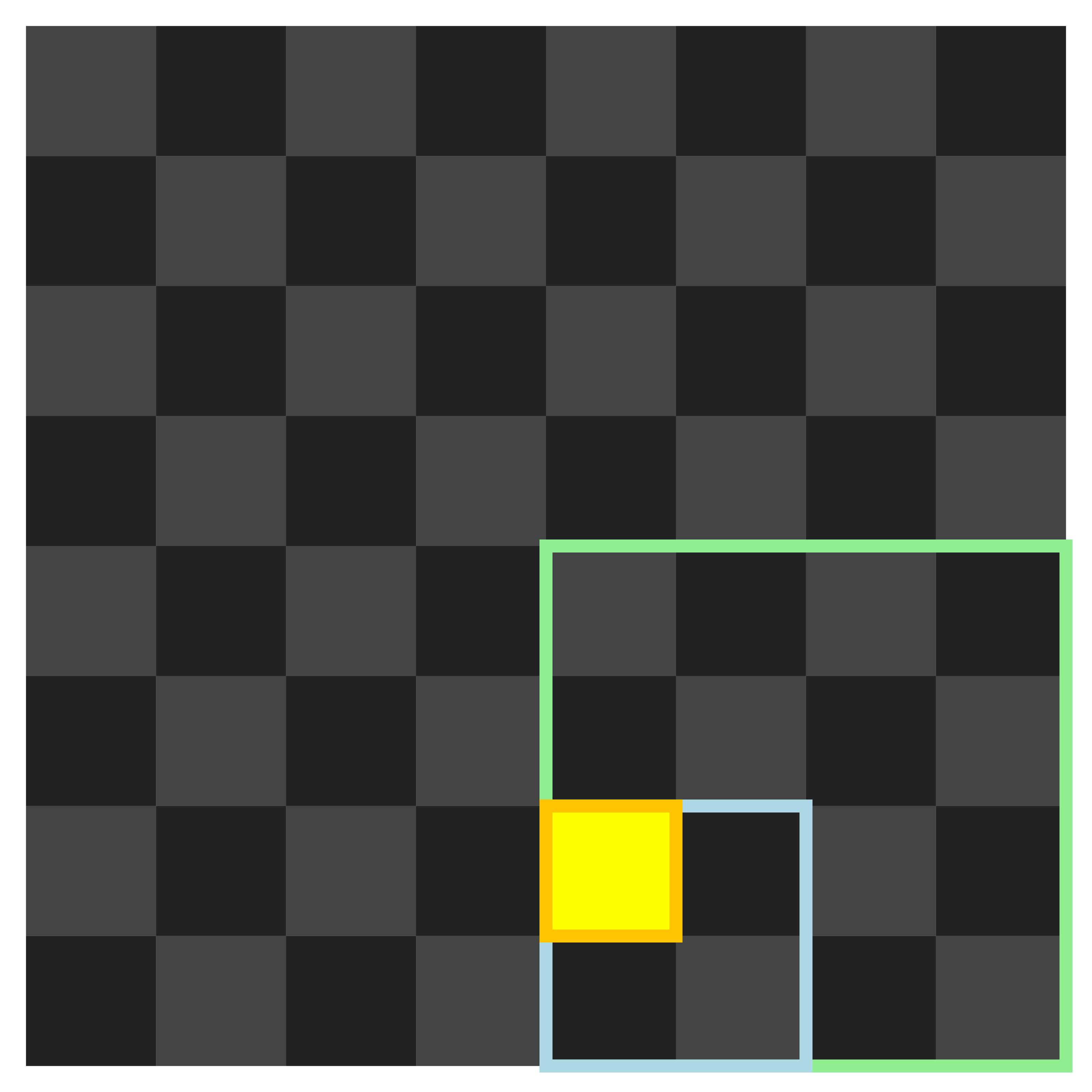
Other examples:
TR TR TR selects h8 (or a1 if you have the black pieces):
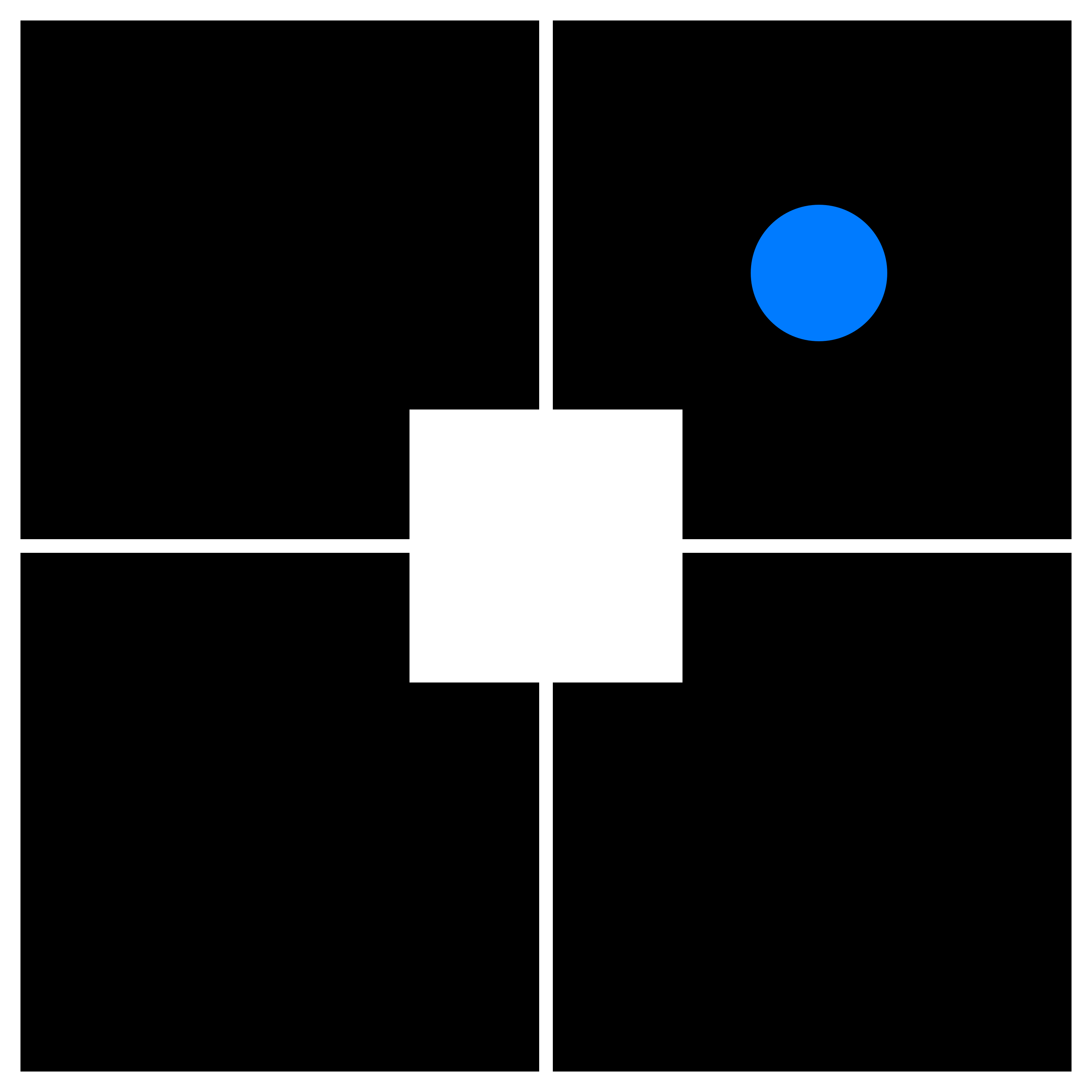
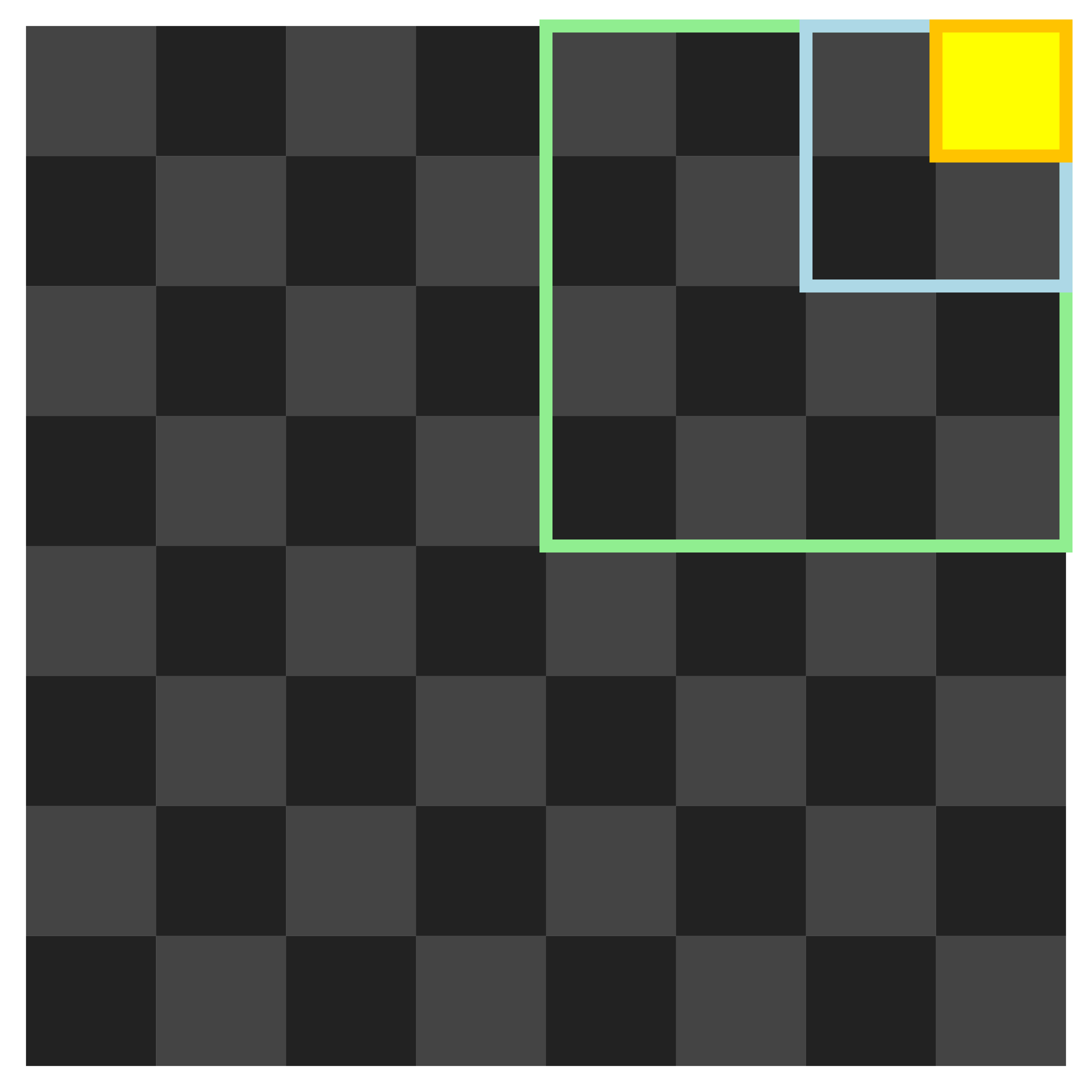
TL BR BR selects d5 (or e4 if you have the black pieces):
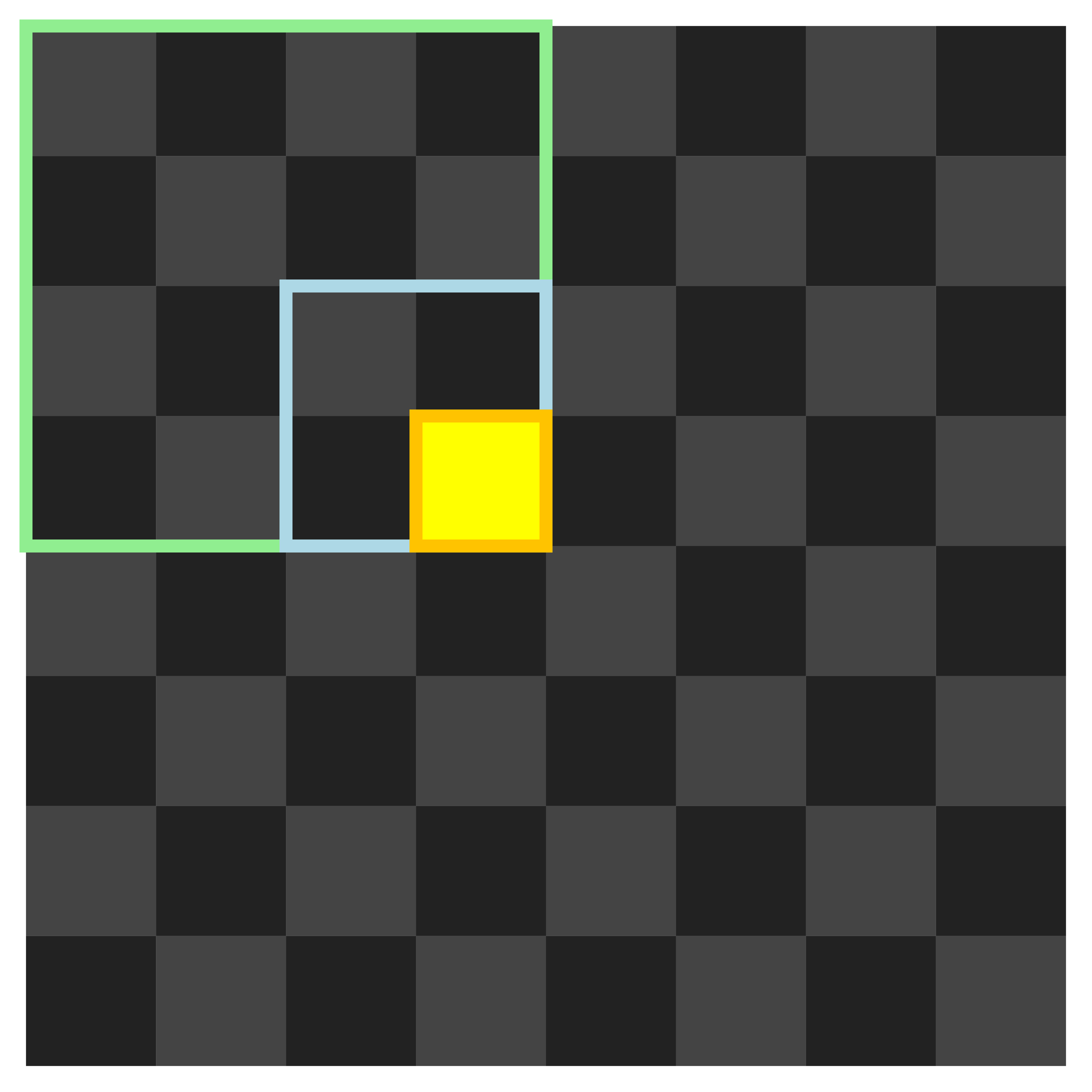
Steps to Make a Move
- Select the "From" Square: Perform three taps to select the square of the piece you want to move.
- The app will announce your chosen square (e.g., "Pawn from e2").
- If the selected square does not contain one of your pieces, you will hear "Please select a valid starting square".
- Select the "To" Square: Perform another three taps to select the destination square for your piece.
- (If you have chosen to use the option "Confirm moves", swipe from the center square to right to confirm the move.)
- The app will announce the destination square (e.g., "to e4").
- If the move is illegal, you will hear "That's not a legal move". The square selection is undone so that you can try again.
Promotion
If your pawn reaches the last rank and you have unchecked the "Always promote to queen" option in the menu:
- After selecting the "to" square for your pawn's promotion, the app will announce: "Choose a promotion piece."
- The four touchable quadrants will now display the promotion options:
- Top Left: Queen
- Top Right: Rook
- Bottom Left: Bishop
- Bottom Right: Knight
- Tap the quadrant corresponding to the piece you wish to promote to.
- The app will confirm your choice by finishing the move sentence with – for example – "promoted to Queen". The full sentence that you've heard, might then be: "Pawn from f7 takes g8 – choose a promotion piece – promoted to Queen".
Swiping from the Center
Swiping from the center square in four directions triggers helpful shortcuts without opening the game menu:
- Swipe left: Swiping from the center square to the left cancels a wrong tap sequence of 1 tap, 2 taps, 3 taps (piece selected), 4 taps or 5 taps (piece selected and destination square almost selected).
- Swipe down: Swiping from the center square downwards will repeat the last relevant audio announcement:
- Games (Standard / 960): Reads out your opponent's last move again.
- 960 games: Before making your first move, reads out the starting back-rank piece configuration using a compact 5-letter code: the two bishops alphabetically, the two knights alphabetically, and the queen – think ♝♝♞♞♛ separated by pauses – e.g. "b e – c g – a". The remaining 3 empty squares on the back rank are always Rook, King, Rook with the King always between the two Rooks. (Once you've made your first move, swiping down reads out the opponent's last move as usual.)
- Puzzle Ascent: Reads out the current puzzle piece positions again.
- Races: Reads out the current exercise again.
- Swipe right: Swiping from the center square to the right confirms your move if you have enabled the "Confirm moves" option. When playing Diagonal Race, swipe right has a different meaning.
- Swipe up: Swiping from the center square upwards reads out your remaining clock time in timed games (or the lowest time left in Lichess simuls), or elapsed time in unlimited games.
Tip: If you find it tricky to locate the center of the screen with your eyes closed, you can move both your thumbs to the center until they touch each other (hovering the screen). Now you know where the center is and you won't accidentally tap the wrong area.
Using the Game Menu
During a game, tapping the square in the center will open a menu with the following options:
- "Undo Last Move": Tap this to undo the last full move (your move and the AI's response). In multi-board mode, it will undo the current board's last (AI) move and then switch to the previous board to undo your last move.
- "Cancel Selection": If you've started selecting a square but want to reset, tap this button. It will clear your current partial selection. A shortcut for this (without opening the game menu, keeping your eyes closed) is to swipe from the square in the center to left over at least 25% of the screen width. You will hear a confirmation sound.
- "View PGN": When in doubt about the move history, you can see the history of all the boards you're playing in a PGN-like format and then "Resume". In the PGN viewer there is also a "See Board" option.
- "Home": Returns you to the Home screen. Here you can start a new game or change settings. (Games and Puzzle Ascent sessions can be resumed via the Progress page.)
- "Resume": Returns you to your current game.
 Quadrant Race
If you want to practise the square selection system without the complexity of playing a full chess game, you can choose "Quadrant Race" on the Home screen. In this mode, you will only select squares, without moving pieces on a chessboard or playing against an opponent. The app will announce random squares that you have to select in 3 taps. After having selected all 64 squares, you will see your performance statistics: your total time and average time per square.
Note that you can do Quadrant Race for white or for black, which changes the square selection sequences.
 Diagonal Race
In Diagonal Race, you'll hear 2 squares, for example "c1" and "e7". Can a bishop move from the first square to the second square in 2 moves? In this case there are 2 possible solutions: "g5" or "a3". Select both solutions in any order. If a bishop cannot move to the second square (because their colors are different), swipe from the square in the center to the right. You'll get 26 exercises, of which 24 cover all types of 2-move diagonal paths and 2 are "impossible" and need a swipe. After that you'll see your performance statistics: your total time and average time per answer.
 Knight Race
In Knight Race, you'll hear 2 squares and the goal is to select the squares that form a knight's shortest path between the two squares. For example, if you hear "a1 → a2", the shortest paths are "start → b3 → c1 → end" and "start → c2 → b3 → end", so you must select "b3 c1" or "c2 b3" (6 taps).
- Knight Race 1 has 14 exercises. The start and end have a smaller visual distance to each other and there is a maximum of 4 moves.
- Knight Race 2 has 35 exercises and covers all paths (2, 3, 4, 5 or 6 moves).
 Puzzle Ascent
In Puzzle Ascent, you'll hear a chess position read out loud (swipe down from the center square to hear it again), and your objective is to find the winning tactic (checkmate or material gain of at least 200 centipawns). You have unlimited time and unlimited attempts to calculate lines and verify your visualization. Playable from white's or black's perspective. On solved, you'll advance to the next puzzle with — on average — a +50 Elo rating increase as you climb higher. Your solved count is displayed in the center of the screen.
There are 4 "levels" of Puzzle Ascent depending on how many pieces you want to visualize:
- Puzzle Ascent 6 has a maximum of 6 pieces in the starting position.
- Puzzle Ascent 8 has 7 or 8 pieces in the starting position.
- Puzzle Ascent 10 has 9 or 10 pieces in the starting position.
- Puzzle Ascent 12 has 11 or 12 pieces in the starting position.
For each of these levels, the difficulty of the puzzles starts at 400 Elo and scales up to 3000 Elo.
Play Humans
With Play Humans, you can play live games online against opponents on Lichess while playing blindfolded. Your opponent plays normally on Lichess without needing this app.
Connecting & Pairing
Tap "Play Humans" (👥) on the Home page and connect your Lichess account via secure OAuth.
- Match Settings: Standard or 960 chess, rated or unrated, and time controls from Blitz to Classical (up to 90+30).
- Pairing: Challenge a player via "Ask by Username" (or share a direct challenge link), seek an open match with "Automatic Pairing", or accept incoming challenges.
Human Simuls
When multiple boards are selected, you can challenge multiple opponents simultaneously:
- Separate Clocks: Each board has its own independent clock.
- Low-Time-First Routing: You play move 1 on each board in order; thereafter, the app automatically transitions to whichever active game has the most urgent clock.
- Time Announcements: Swiping up announces the lowest remaining clock time among active games.
Live Play & Connectivity
Opponent moves are announced out loud as they happen. Subtle bars above (opponent) and below (you) the center square show connectivity in real time (cyan: connected, orange: offline / reconnecting). If disconnected, the app automatically reconnects and synchronizes all moves and clocks.
Progress Page
You can view your activity and resume ongoing sessions by opening the Progress page via the "Progress 📊" button on the Home screen.
- Ongoing: Paused games and ongoing Puzzle Ascent sessions are stored here so you can easily resume them. (If not continued within 10 days, ongoing items are automatically deleted.)
- Achieved: Displays your completed games, race results, and high scores stored locally on your device. (Items older than 30 days are automatically deleted.)
Tips for Beginners
- Make sure you don't get disturbed: Choose a place and a time to practise so that nobody interrupts your training session.
- Start simple: Begin with standard chess, 1 board, bot "Benny 🍃 100". Or instead of "Position: Standard", select "Position: Custom" and set up the board with just a few pieces (this requires using FEN, Forsyth-Edwards Notation).
- Trade pieces: Do many exchanges to clean the board, making it easier to remember.
- Verify that you remember: During each of your turns (or maybe less), try to remember all piece positions. This costs time, but trains your brain. How many moves did you do without losing track? Play more slowly next time: verify/remember more often. Later you will not need to do this so consciously anymore.
- Stop the game when you forgot a piece position: When in doubt about a piece position, use the "View PGN" button. After analyzing (without a board), stop your training session.
- Don't expect quick results: Start only one game per day. Trust that your brain changes itself during sleep. After a few days of practice (one game start per day), you might notice that you're able do more moves before forgetting the current position or making a blunder.
Next Level Tips
- Go 960: To avoid playing openings from memory, play 960 as soon as you have defeated the first opponent. Memorize only the 5 file names (bishops alphabetically, knights alphabetically, queen — e.g. "BE, CG, A") and then press "Start" (or swipe down from the center before your first move to hear them read out). Rehearse the starting position a few times from left to right and from right to left before starting to think about your moves.
- Don't be scared of 2 boards: When you feel comfortable with 1 board, add a second board. It may seem daunting, but it may actually not be a big step after you've mastered playing 1 board blindfolded.
- Take care of your health: Some professional players advise against playing too many boards blindfolded. Take care of your brain ❤️
Live streaming a game
Streamers and educators can:
- Option A or B: play blindfolded on a mobile device while a computer renders a real-time board visualization for an audience at blindfold-chess.app/live. (Please note that this page is designed to be screen-captured, not visited directly by viewers.)
- Option C: play directly on a computer via a standard keyboard or game controller without using a mobile device.
Option A: Use the internet
Best for a quick, no-install setup. It syncs moves via an online database, which introduces a slight delay (especially for users outside Europe).
- Open the app on your phone and tap the "blindfold-chess.app" title three times.
- Tap "Get Stream ID" to generate a unique code.
- On your computer, open blindfold-chess.app/live, enter the ID, and press play.
- On your phone, press "Start." The live board will now sync your moves.
- To stop, return to Home and tap the title three times again.
Option B: Use Bluetooth
Streaming with near-zero delay. This requires running our local relay server on a Windows computer to sync your phone directly via Bluetooth.
- On your computer, download and run the Relay Server (for Windows). (You may need to click "More" and "Run anyway" if Windows warns you about the file.)
- Ensure Bluetooth is enabled on your computer and phone.
- Open blindfold-chess.app/live on your computer and click "Use Local Relay."
- On your phone, tap the "blindfold-chess.app" title three times, then tap "Use Local Relay."
- Press "Start" on your phone. AI moves are synced with your phone's audio for a seamless visual experience.
- To stop, return to Home and tap the title three times again.
Option C: Use the in-app touch-through chessboard
This option displays a chessboard with pieces directly within the app. Instead of a square in the center, a chessboard occupies 90% of the screen, overlapping the play buttons. Taps pass through the board to the quadrants behind it, so you can play (without looking) exactly as you're used to. If you use this feature while playing on a computer, you can screen-capture the app directly without needing the "/live" page. (Note 1: On a computer, you can use the physical buttons input method to play without touching the screen at all. In other words, you don't need a phone for streaming when using this feature. Note 2: Although the center square is invisible, tapping its location still opens the game menu.)
- On your phone or computer, open the app. Click/tap the title "blindfold-chess.app" three times.
- Click/tap the "Show touch-through board" button.
- If you now click/tap "Start", you see a chessboard.
- To return to normal mode, click/tap the center of the chessboard, go to Home and click/tap the title "blindfold-chess.app" another three times.
Frequently asked questions
Is this app free?
Yes, the License Agreement of blindfold-chess.app may be summarized as "free to use, not to copy". You can use this app for free, including if you're taking part in professional chess activities such as tournament play, coaching, or content creation. You can upload videos or stream your games live using this app, as long as the URL "blindfold-chess.app" is visible for at least a few seconds.
However, you may not copy, reproduce, distribute, modify, create derivative works of the app, including its code, design, or unique features. If you are sharing ideas from this app with others, please also refer them to blindfold-chess.app directly.
The idea of the touch-based input system, with 3 taps to select a square, is unique – a proprietary feature found exclusively on blindfold-chess.app and owned by blindfold-chess.app. Licenses are available if you're interested in using this idea, or parts of this app, in your own application/website/etc. For more information, see the License Agreement section or visit blindfold-chess.app/partners.
Can I download the app?
Yes. This app is a Progressive Web App (PWA) and can be installed on your device. When you open the app in a browser and see "blindfold-chess.app" in the URL bar, then, depending on your browser (e.g. Chrome, Edge, etc.), you might see, near the URL bar or via the browser menu, an icon for installing this app on your device*. After installing, the app will appear on your home screen, and you can launch it from there. If clicking on the app icon opens a regular browser tab, then only a shortcut has been placed on your home screen. Try installing the app via a different browser.
* On iPhone in Safari, tap the Share button (the square with an up arrow), scroll down and select "Add to Home Screen".
Can I use this app offline?
Yes. There are two options:
- Install the app (see above) and turn off your internet connection.
- Use the app in a browser without installing it. This web app asks your browser to cache the whole app, so that when you lose your internet connection or play offline deliberately, the app still works.
How to enter fullscreen mode?
Playing the app in fullscreen mode prevents you from touching outside of the game screen of the app. Using the app eyes-closed, you don't want to accidentally close the app or click on the URL bar while thinking that you are selecting a square!
The app requests your browser to enter fullscreen mode when clicking "Start". However, this may not work on all devices or browsers. If it doesn't, you can try the following:
- When installed on Android, the app opens fullscreen automatically.
- On iPhone in Safari, tap the Share button (the square with an up arrow), select "Add to Home Screen" and launch it from there.
- On Windows, press F11 (or fn + F11).
- On Mac, press Control + Command + F (or Fn + F).
If your device does not support a fullscreen mode, then you can use a workaround: make a cardboard box around your screen with a rectangular hole for the game screen — cardboard can cover the device's/browser's navigation controls that might close the app.
Why does the audio fade in when using headphones?
Some USB-C headphones may enter a low-power or standby state when there is no sound. When audio starts again, they may take a short moment to activate, causing the beginning of the audio to fade in or be inaudible. Possible solutions are:
- Use headphones or earbuds with a 3.5 mm jack.
- Use USB-C headphones or earbuds that do not have this fade-in behavior.
- Play without headphones or earbuds.
Using a USB-C-to-3.5 mm adapter may not solve the problem, because the adapter may also contain audio electronics that introduce a similar fade-in effect.
Other questions?
For other questions or ideas for improvements, feel free to e-mail to hi@blindfold-chess.app.
📚 License Agreement
Last updated: 27-08-2026.
This License Agreement (the "Agreement") governs your use of blindfold-chess.app (the "App"), located at https://blindfold-chess.app, and its associated features and intellectual property. By accessing or using the App, you agree to the terms of this Agreement.
Central to the App is a proprietary method for selecting an item from a grid, hereinafter referred to as the "Input System". For the purposes of this Agreement, the Input System is defined as:
A method for selecting a single square from an 8x8 grid through a sequence of three user inputs. The method is based on a hierarchical decomposition of the grid:
- The 8x8 grid is first divided into four 4x4 quadrants. The first user input selects one of these four quadrants.
- The selected 4x4 quadrant is subsequently divided into four 2x2 sub-quadrants. The second user input selects one of these four sub-quadrants.
- The selected 2x2 sub-quadrant contains four individual squares. The third user input selects one square from these four.
This Input System is independent of the input mechanism (which may include, but is not limited to, screen taps, button presses, swipes, or joystick movements) and the visual representation of the grid.
1. Ownership and Copyright
The App, including its Input System and overall design, is the proprietary intellectual property of blindfold-chess.app (e-mail biz@blindfold-chess.app) and is protected by copyright laws. All rights not expressly granted to you in this Agreement are reserved by us.
2. Permitted Uses
2.1. Free Individual and Personal Use
You are granted a free, non-exclusive, non-transferable license to use the App for your individual and personal purposes. This includes, but is not limited to, practicing, training, and improving your blindfold chess skills. This permission extends to individuals who may earn income from professional chess activities, such as tournament play, coaching, or content creation, provided their use of the App itself remains personal and does not involve the commercial reproduction, distribution, or integration of the App's unique features into other commercial products or services.
2.2. Educational and Content Creation Use
Chess teachers, online content creators, and similar educational entities are permitted to use and showcase the App for instructional or demonstration purposes, including playing games. When doing so, the URL "blindfold-chess.app" must be visibly displayed for at least a few seconds in any content created (videos, streams, screenshots, etc.).
3. Restricted Uses
Unless explicitly granted through a separate commercial license agreement with us, the following uses are strictly prohibited:
- Commercial Use: Any use of the App or its unique features for direct or indirect commercial gain, including but not limited to selling access to the App, incorporating it into a paid product or service, or using it for advertising purposes.
- Reproduction and Distribution: Copying, reproducing, distributing, modifying, creating derivative works of, publicly displaying, or publicly performing any part of the App, including its code, design, or unique features, outside of the blindfold-chess.app domain.
- Reverse Engineering: Attempting to decompile, reverse engineer, disassemble, or otherwise discover the source code or underlying algorithms of the App.
- Sub-licensing: Granting sub-licenses to others to use the App or any of its components.
- Use in Other Applications/Websites: Integrating the Input System or any other proprietary elements of the App into other applications, websites, or platforms without a specific license.
4. Commercial Licensing
For any use beyond the "Permitted Uses" described in Section 2, particularly for commercial purposes or integration into other applications/websites, a separate commercial license is required. Please contact us at biz@blindfold-chess.app to inquire about licensing opportunities or visit blindfold-chess.app/partners.
5. Third-Party Licenses & Credits
The App incorporates third-party software components and open data:
- Stockfish.js: Used for the AI opponent. Its license can be found at the official Stockfish repository.
- Chess.js: Used for chess logic. Its license can be found at the chess.js repository.
- Chess pieces by Colin M.L. Burnett: Retrieved from Wikimedia Commons (Attribution-ShareAlike 3.0 Unported). We use the original images for light backgrounds and created a variant for dark backgrounds.
- Lichess Puzzles: Puzzle data is provided by the Lichess community under Creative Commons CC0 (Public Domain Dedication).
- Lichess API: Online human play is powered by the open Lichess API.
Your use of the App acknowledges and abides by the applicable third-party software licenses.
6. Disclaimer of Warranties
The App is provided "as is," without warranty of any kind, express or implied, including but not limited to the warranties of merchantability, fitness for a particular purpose, and non-infringement. In no event shall we be liable for any claim, damages, or other liability arising from your use of the App.
7. Governing Law
This Agreement shall be governed by and construed in accordance with the laws of The Netherlands, without regard to its conflict of law principles.
8. Changes to This Agreement
We reserve the right to modify this Agreement at any time. Your continued use of the App after any such modifications constitutes your acceptance of the new terms.
For any questions regarding this License Agreement, please contact us at legal@blindfold-chess.app.
🛡️ Privacy Policy
Last updated: 23-08-2026.
We are committed to collecting as little data as possible. This Privacy Policy describes why, what, and how we collect and use data from users of the blindfold-chess.app.
Online mode
When your device is connected to the internet, the app sends logging for two purposes:
- to find and fix technical problems for specific devices.
- to get an idea of how many people are using the app and how often certain features are used.
The logging includes these components:
- App ID: A random, anonymous ID is generated once by the app and sent with each log event. This allows us to group log events without identifying you personally.
- Technical Data: The app's version, your device's operating system and its version (e.g. "Android 10" or "iPhone OS 17").
- Event information: At the beginning of a game, we log the settings (e.g. number of boards, game variant, difficulty level, color, value of "Always promote to queen", physical button mapping if used, intermediary voice setting). At the "first move done", we log that a first move was made, but not which move it was. At an error, we log the error message. We log whether a game was finished, but we do not log your moves or the game result (win/draw/loss). If you use the "Share" button in the PGN viewer, we log that you used it, but we do not log the content of what you shared. For other events, we follow a similar approach: we log that the event happened, but not the content of what you did. We do not log the usage of the "Undo Last Move" button. We tested it in many scenarios and really want the "Undo Last Move" button to be private in the most absolute way.
Here is an example of logging:
Event: error
More info: Audio file /audio/en/voice-a/c.mp3 failed.
User agent: Mozilla/5.0 (iPhone; CPU iPhone OS 17_0_1 like Mac OS X) AppleWebKit/605.1.15 (KHTML, like Gecko) Version/17.0 Mobile/15E148 Safari/604.1
App ID: 55fa07ee-b5e9-44cf-a00f-7148b2ea31fb
App version: 38
The data we collect is not shared with any third parties for marketing or other commercial purposes. However, we use a service provided by Google to directly receive, process (using Google Apps Script) and store the logging data (in our Google Drive account). Google might, when its Apps Script service receives the logging data, collect data that is a standard part of all internet requests, such as the User Agent (e.g., Mozilla/5.0...), the request timestamp, and the sender's IP address. We do not collect IP addresses.
Play Humans (Lichess integration)
When you use the "Play Humans" feature:
- Direct connection: All communication (authentication, challenges, moves, and board streams) occurs directly between your browser/device and Lichess (lichess.org). We do not run an intermediary server for your games.
- Authentication & Token: When you connect your Lichess account, your login credentials/passwords are handled entirely by Lichess via standard OAuth 2.0 PKCE. Only an access token and your public profile (such as username and title) are saved locally on your device in your browser's local storage.
- Disconnecting: You can disconnect your account at any time, which revokes the token on Lichess and clears all authentication data from your device.
- Game Data: As with our offline and bot games, we do not log your moves, chats, opponents, or game results to our servers. Your gameplay with Lichess players is subject to Lichess's Privacy Policy.
Offline mode
If you use the app without an internet connection, the app keeps track of the number of games played offline via counters stored locally on your device, such as "firstMovesDoneOffline", "gamesFinishedOffline", "quadrantRacesStartedOffline" and "quadrantRacesFinishedOffline". When you later use the app with an internet connection, it sends these numbers to us (and resets them to zero). This allows us to get an idea of how many games are played offline, without tracking any personal data or game details.
Updates and questions
We may update this Privacy Policy from time to time, so we encourage you to review it periodically.
For any questions regarding this Privacy Policy, please contact us at legal@blindfold-chess.app.